Redact Documents using Custom Patterns
This article explains how to apply redaction using one or more custom patterns regular expression based rules available in your VIDIZMO portal and optional keywords, without opening Studio.
In the VIDIZMO portal, you can create custom patterns to define Personally Identifiable Information (PII). When you select Custom PII as the detection type during content processing, the VIDIZMO Indexer uses these patterns to detect and redact user-defined PII entities from transcriptions or on-screen text (via OCR).
If your application is configured for automatic processing, uploaded files are automatically scanned and redacted based on your defined custom patterns. If automatic processing is turned off, this article describes how to manually apply redaction and detection for custom patterns in the VIDIZMO portal.
To learn how to create custom patterns, see How to Create Custom Patterns. To perform redaction in Studio instead, see Redact Documents in Studio.
Prerequisites
- You must belong to a group that has Redaction feature permissions.
- To upload documents, you need the Document feature.
Redact Using Pattern
-
In the Library, open the overflow menu (⋮) for a document.
-
Select Redact using Pattern.
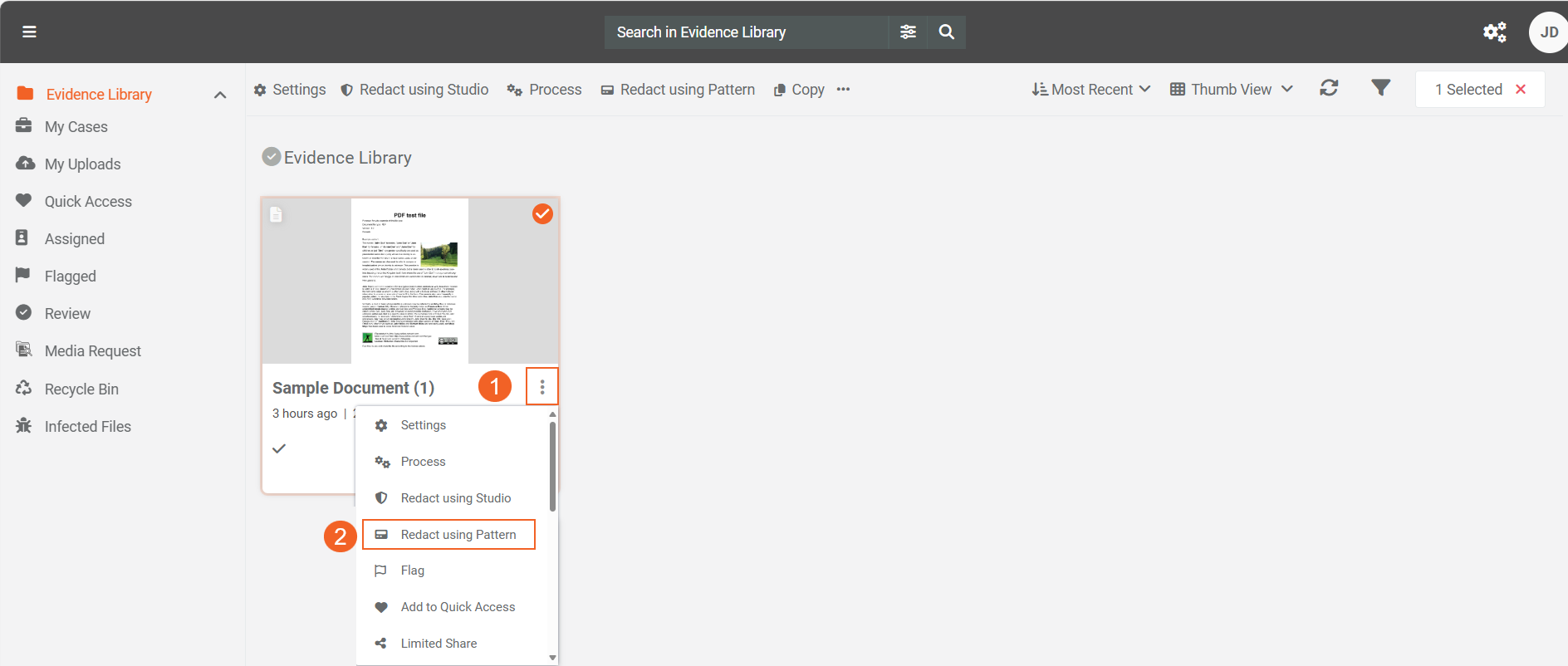
Alternatively, to apply redaction to multiple documents, select the documents you want to redact, and then choose Redact using Pattern from the header.
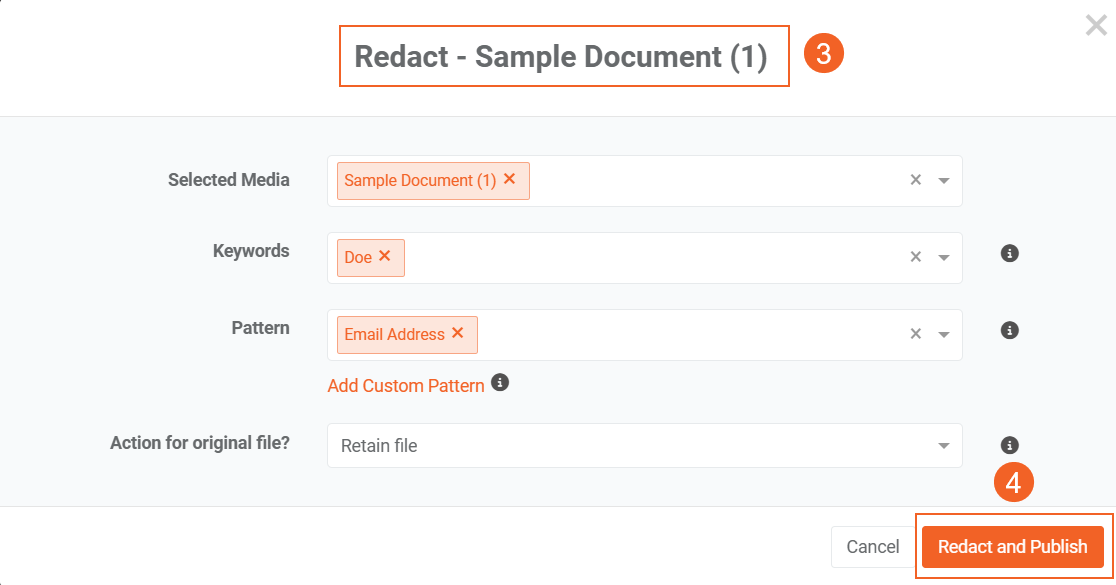
- In the Redact modal:
- (Optional) In Keywords, enter terms to redact in addition to patterns.
- Select Patterns.(Optional) select Add custom patterns to create a new pattern. You’ll be redirected to Portal Settings > Custom Patterns. See Create and manage Custom Patterns for guidance. Returning to the modal clears current selections.
- Select an action for the original file:
- Retain: Keep the original file as is.
- Delete or Move to Recycle Bin: The file is deleted from the Library and moved to the Recycle Bin.
- Overwrite Original File: Replace the original file with the redacted version.
- Select Redact and publish.
A redacted copy is created in Library.
Note: Redact using pattern works on documents with selectable/editable text. For scanned documents or images, first generate OCR so text becomes searchable and selectable.